Domains
Add, verify and configure the player-facing hostnames pointed at your network.
A domain is a hostname players use to connect (play.example.com, eu.example.com, …). Each domain on a network is verified individually and pointed at the Infinity-Filter edge via a CNAME.
Where to find it
Open Network → Domains.
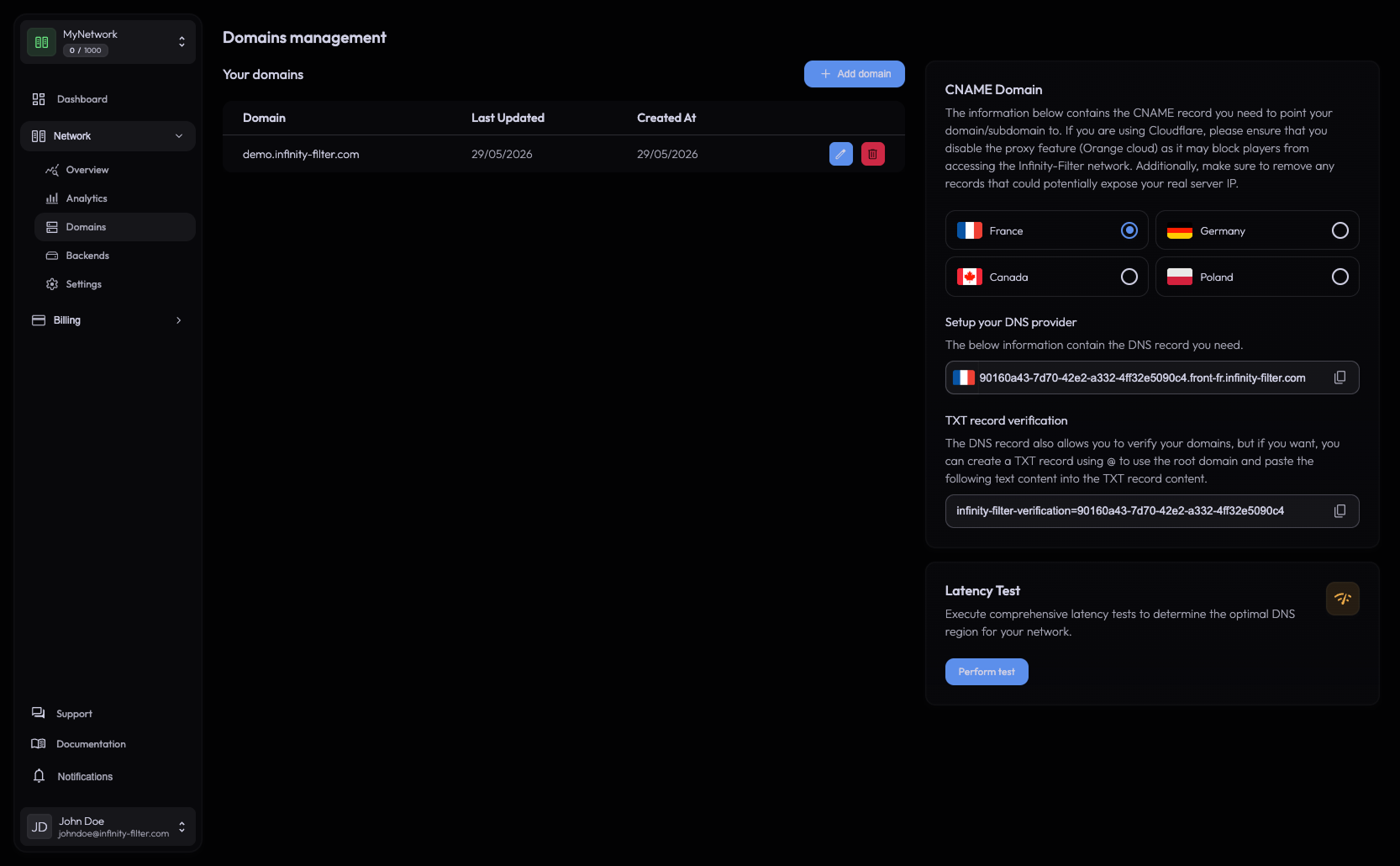
The table lists every domain on this network with: ID, domain, updated, created, and edit/delete actions.
Adding a domain
Click Add domain, type the hostname (e.g. play.example.com), and save.
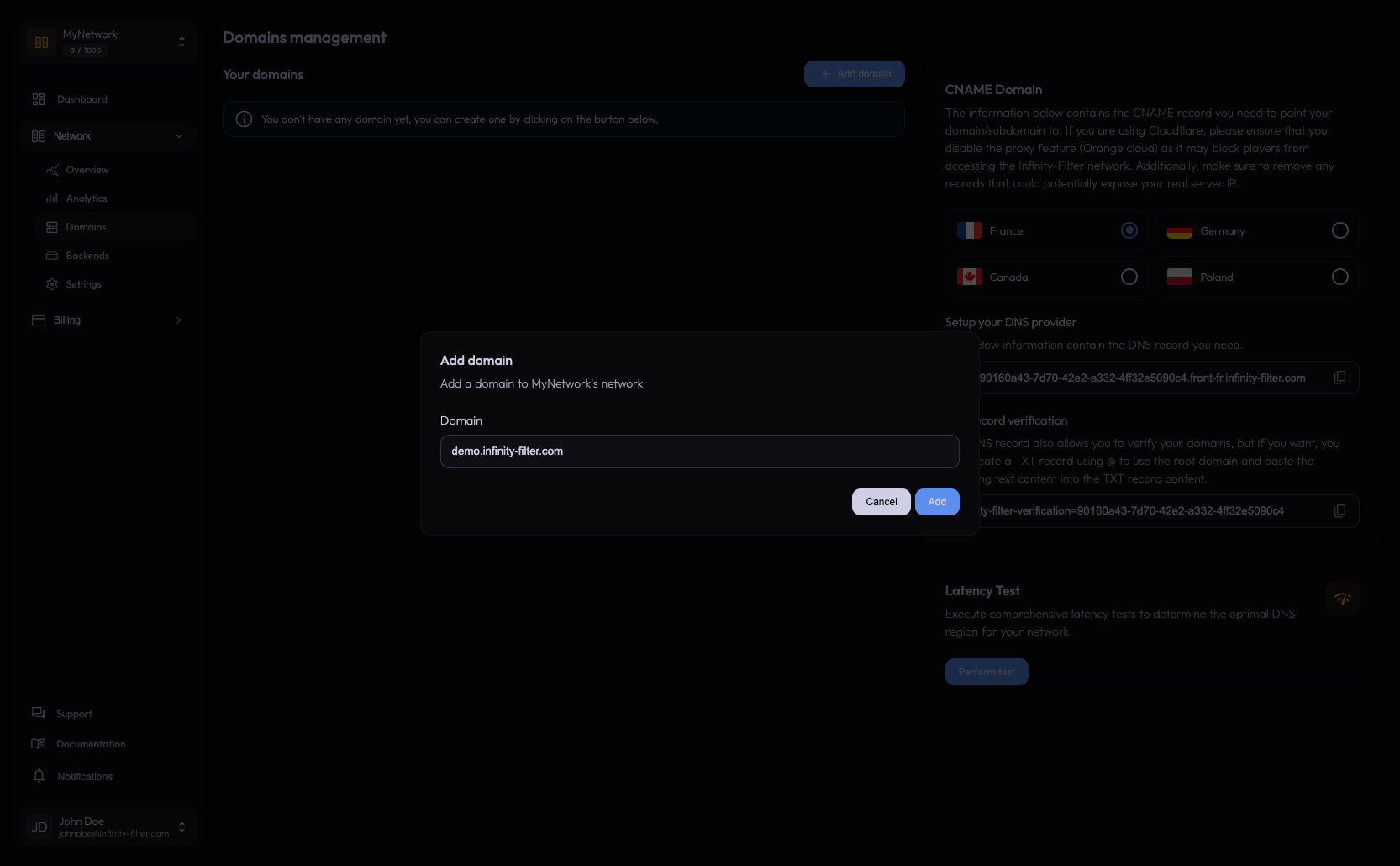
The domain shows up in the table as unverified until its CNAME is detected — pointing the CNAME at the Infinity-Filter edge is what verifies it.
The CNAME card
On the right side of the Domains page, the CNAME card lets you pick the region for the domain.
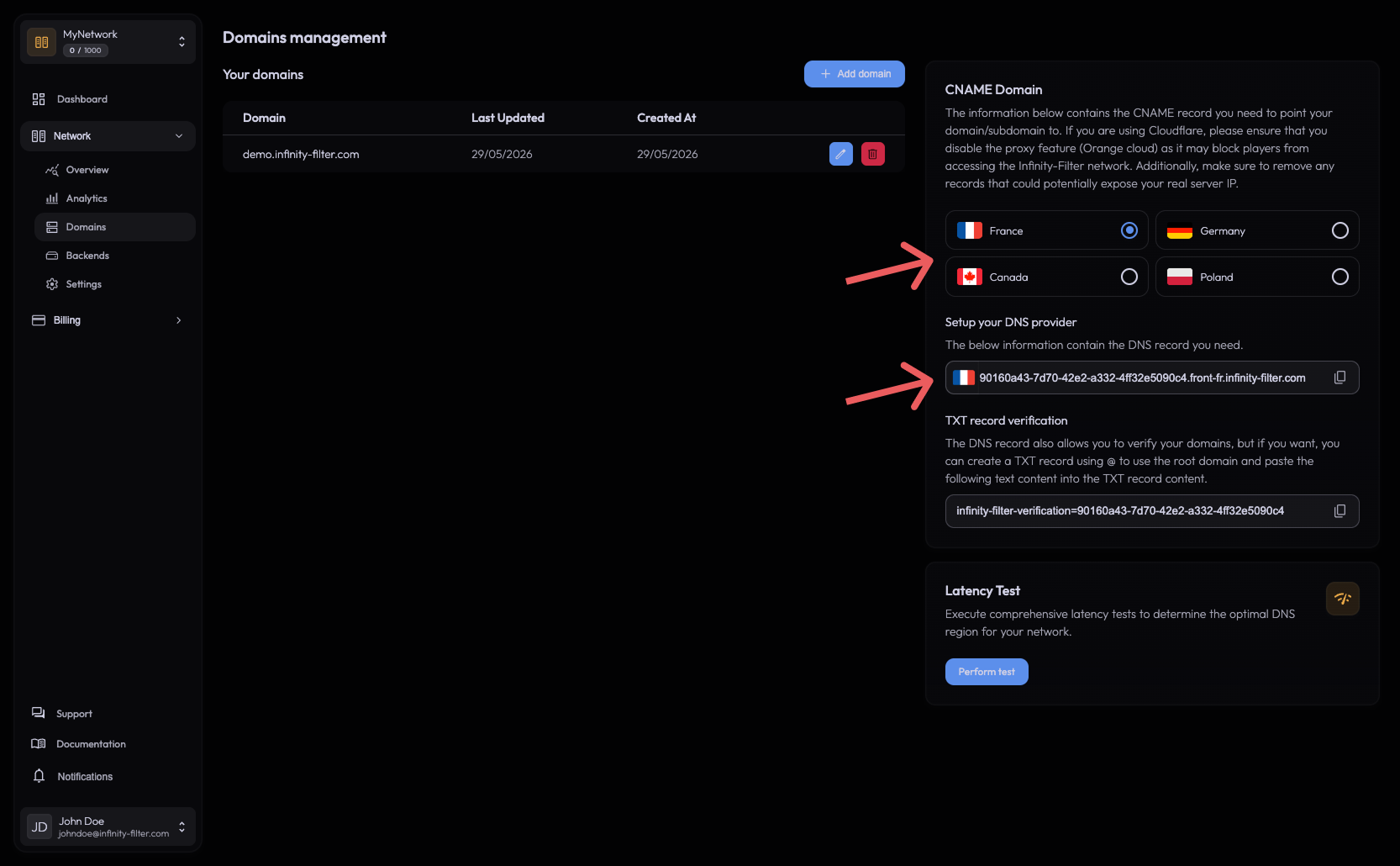
Click the flag of the region you want to use. The card shows:
- A CNAME target your domain must resolve to —
<uuid>.front-<location>.infinity-filter.com. Pointing at it both routes traffic and verifies ownership, so this is all the domain needs. - A TXT record —
infinity-filter-verification=…— created on the root domain (Name =@) by pasting the text the panel shows. It’s an optional fallback (the CNAME already verifies the domain), but recommended so verification survives if the CNAME is ever unreachable.
The selected region is remembered in the panel (localStorage), so it’s the default the next time you open the page.
Picking the right region
Use the Latency Test before picking a region. The right region is whichever PoP gives the lowest RTT between your backend and your player base. See Choosing a region for the full rule.
DNS at your registrar
Create the records exactly as the panel printed them. See DNS setup for the full reference, but the gist:
; CNAME — player-facing hostname → IF edge. Required; this alone verifies the domain.
play.example.com.   300   IN   CNAME   {uuid}.front-de.infinity-filter.com.

; TXT — recommended fallback on the root domain (Name = @). The CNAME already proves ownership.
example.com.   300   IN   TXT   "infinity-filter-verification=..."
Verification
The panel polls DNS continuously. Within a minute or two of the CNAME resolving, the domain is marked verified in the table and starts routing player traffic. (The TXT fallback is checked too, but the CNAME alone is enough.)
If verification fails, see DNS issues troubleshooting.
Editing a region after the fact
Switching CNAME region is non-disruptive:
- Existing player connections keep their backend — they don’t drop.
- New connections start using the new region as DNS propagates.
Before flipping, allowlist the new PoP’s IP ranges at your backend firewall.
Deleting a domain
Click the delete icon on a row. The domain is unregistered immediately on Infinity-Filter — but the DNS at your registrar continues to point at our edge until you remove or repoint the CNAME. While it still points at us, players hitting the hostname see the protected fallback message even though the network no longer claims that domain.
Wildcards
Instead of adding subdomains one by one, register a single wildcard entry:
*.example.com. 300 IN CNAME {uuid}.front-de.infinity-filter.com.
The wildcard counts as one entry in the panel and on the plan quota. It does not cover the apex (example.com) — the apex must still be added separately if you want it to resolve through Infinity-Filter.
Wildcard availability depends on the plan. See Wildcard domains.
Bedrock subdomains are different
Bedrock subdomains (bedrock.example.com, mobile.example.com, be.example.com, mcpe.example.com) only need a CNAME pointing at the dedicated-IP CNAME — they don’t go in the Domains table. Trying to add a Bedrock subdomain there fails with “Domain not verified” because the verification probe is Java-only.
See Geyser integration.
Plan limits
Domain quota (apex + each subdomain + each wildcard) depends on your plan. The current limit and usage are shown on the Domains page. To raise the limit, open Billing → Plans from the sidebar.
What’s next
Last updated: May 28, 2026