Webhooks
Discord notifications for attacks, Anti-VPN blocks and periodic analytics reports.
Infinity-Filter can post Discord notifications to a webhook of your choice. Three categories are supported, each with its own tab in the panel: Attack, Anti-VPN and Analytics.
Every tab follows the same pattern: an on/off toggle, a Webhook URL field, a Webhook Message template, and a Test Webhook button. The Message template supports a small set of variables that are substituted at send time — different per tab.
Where to find it
Open Network → Settings → Webhook. The page has a horizontal sub-nav: Attack (default), Anti-VPN, Analytics.
Discord webhook URL
Each tab takes one Discord webhook URL. To create one:
- In Discord, open the target channel → ⚙ → Integrations → Webhooks → New Webhook.
- Copy the Webhook URL.
- Paste it into the corresponding tab in the panel.
- Toggle the webhook on, then click Test Webhook to send a sample message.
Attack
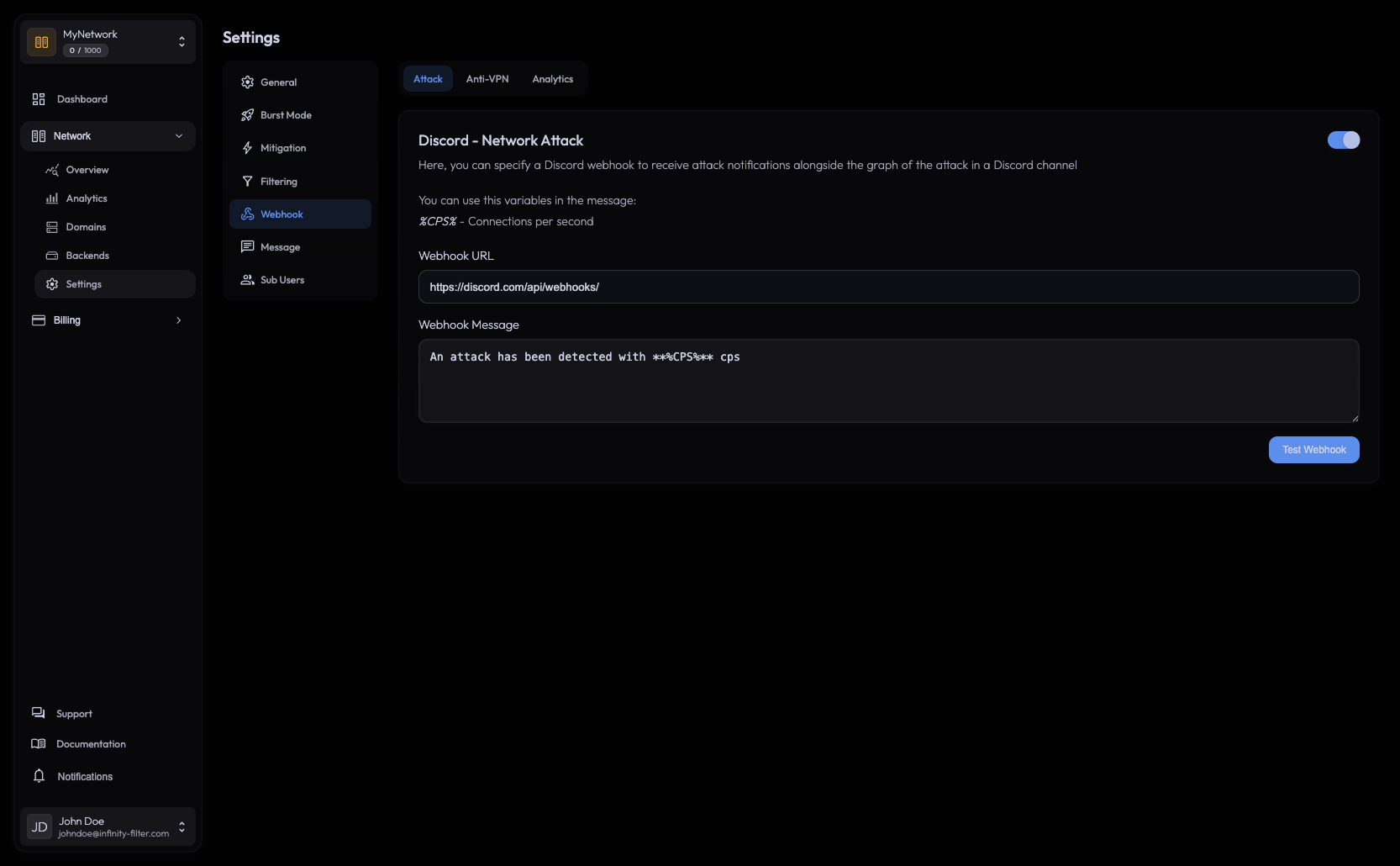
Posts when Infinity-Filter detects an attack on the network. The message is the text you’ve configured, with a CPS graph of the attack attached as an image.
Variables
%CPS% Connections per second observed during the attack.
Anti-VPN
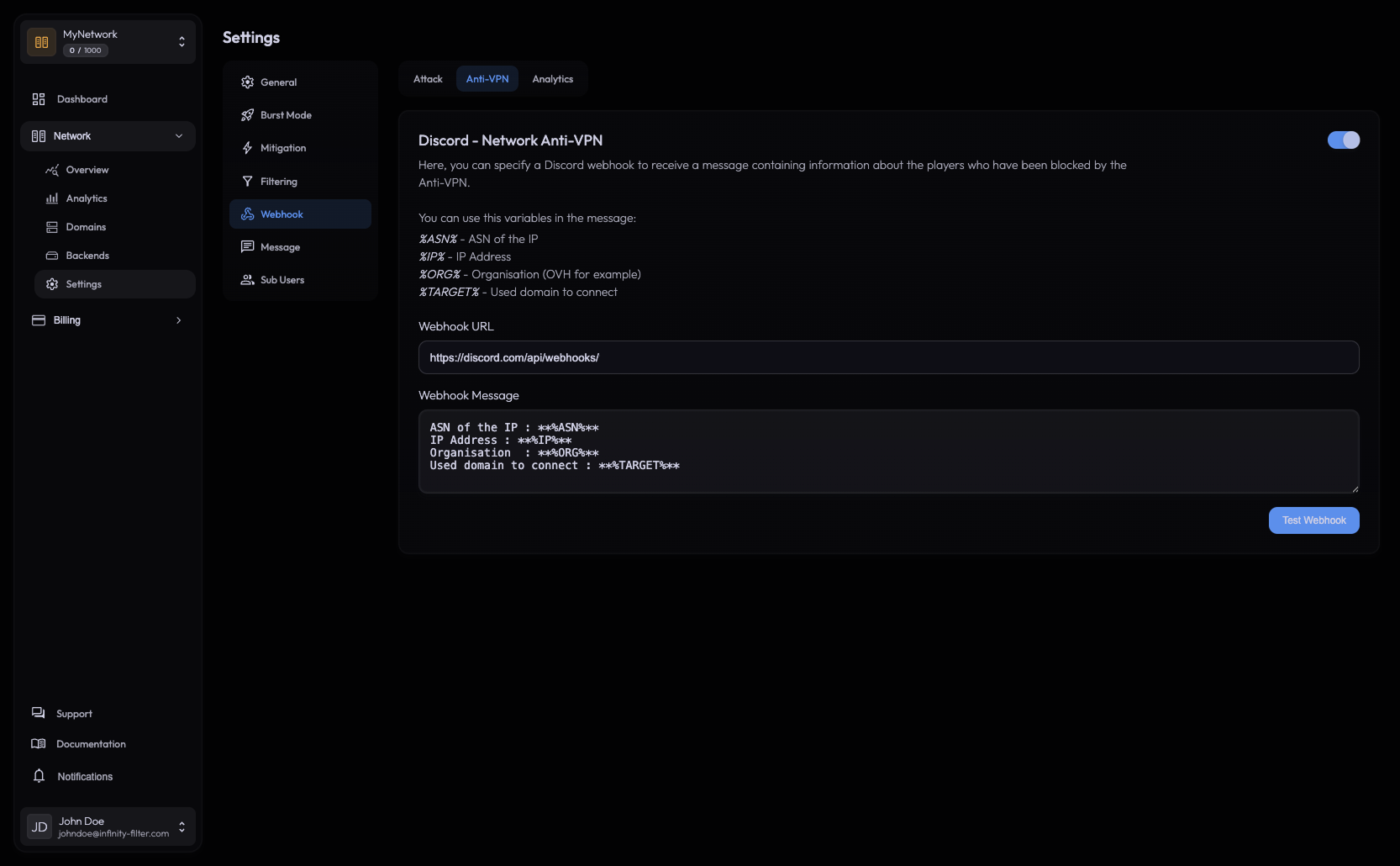
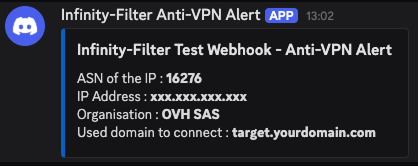
Posts when Anti-VPN blocks a login. One message per block, with the variables substituted from the rejected connection.
Variables
%ASN% ASN of the blocked IP (e.g. 16276 for OVH).
%IP% The blocked IP address.
%ORG% Organisation behind the ASN (e.g. "OVH SAS").
%TARGET% The hostname the player tried to connect to.
Analytics
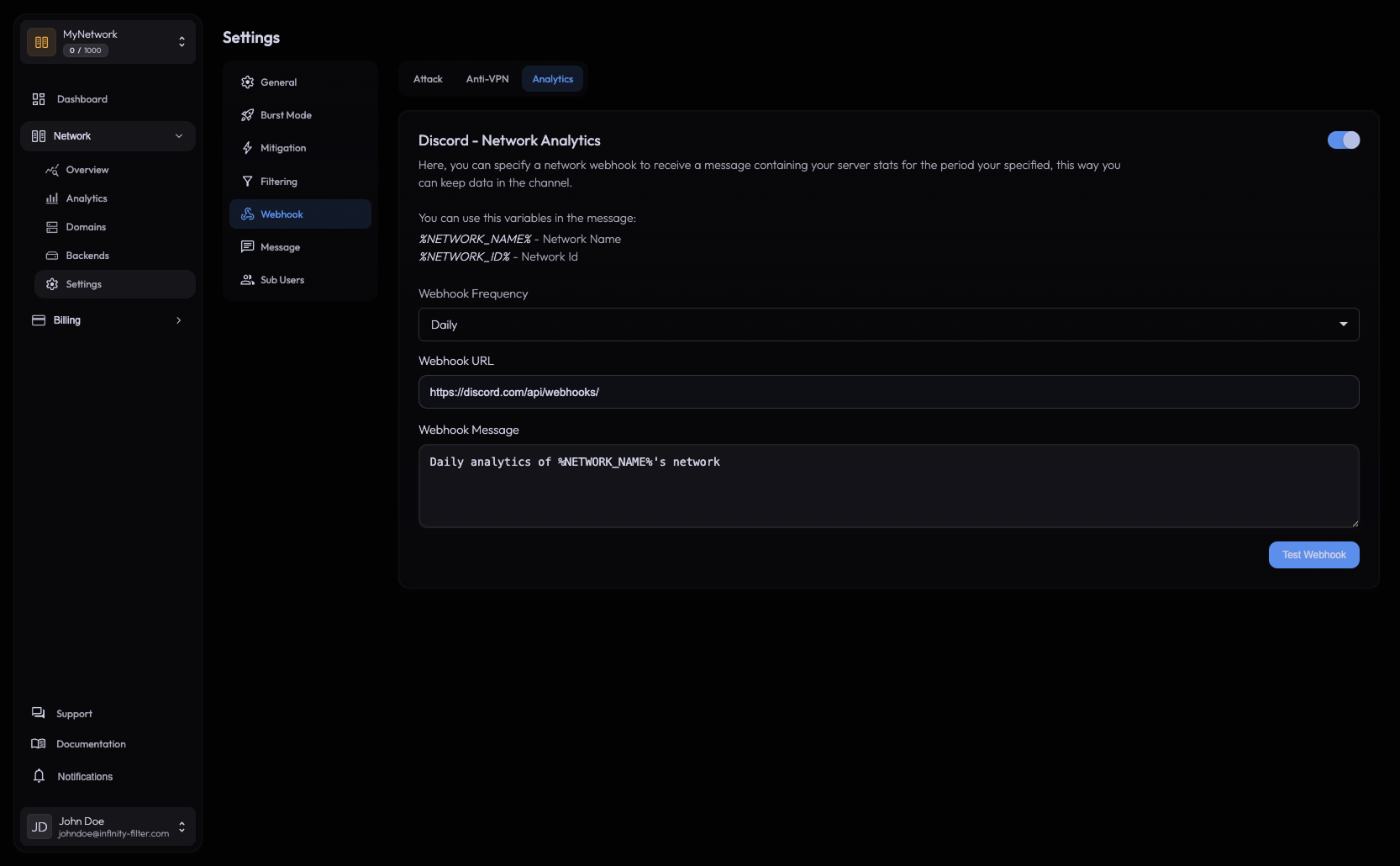
Sends a periodic analytics report at the frequency you pick. Unlike Attack and Anti-VPN, this tab has an extra Webhook Frequency select (e.g. Daily) — the message fires on that cadence rather than on an event.
Variables
%NETWORK_NAME% The display name of the network.
%NETWORK_ID% The internal network identifier.
Testing a webhook
Each tab has a Test Webhook button that sends a sample message to the configured URL with the variables filled in by mock values. Use it to confirm the webhook is reachable before you wait for a real event.
Disabling a webhook
Each tab has a switch at the top right that toggles the webhook on or off. Flip it off and the corresponding event category stops posting — no need to clear the URL.
What’s next
Last updated: May 29, 2026