Networks
Create and manage networks — the public endpoints players connect to.
A network is the central object in Infinity-Filter. It groups together one or more domains (the hostnames players connect to) and one or more backends (your real Minecraft servers). It also owns the mitigation, filtering, webhook and message configuration that applies to all of its traffic.
Where to find your networks
Open panel.infinity-filter.com. The active network is shown at the top of the sidebar in a chip with the network’s name and online status. Click the chip to open the dropdown and switch.
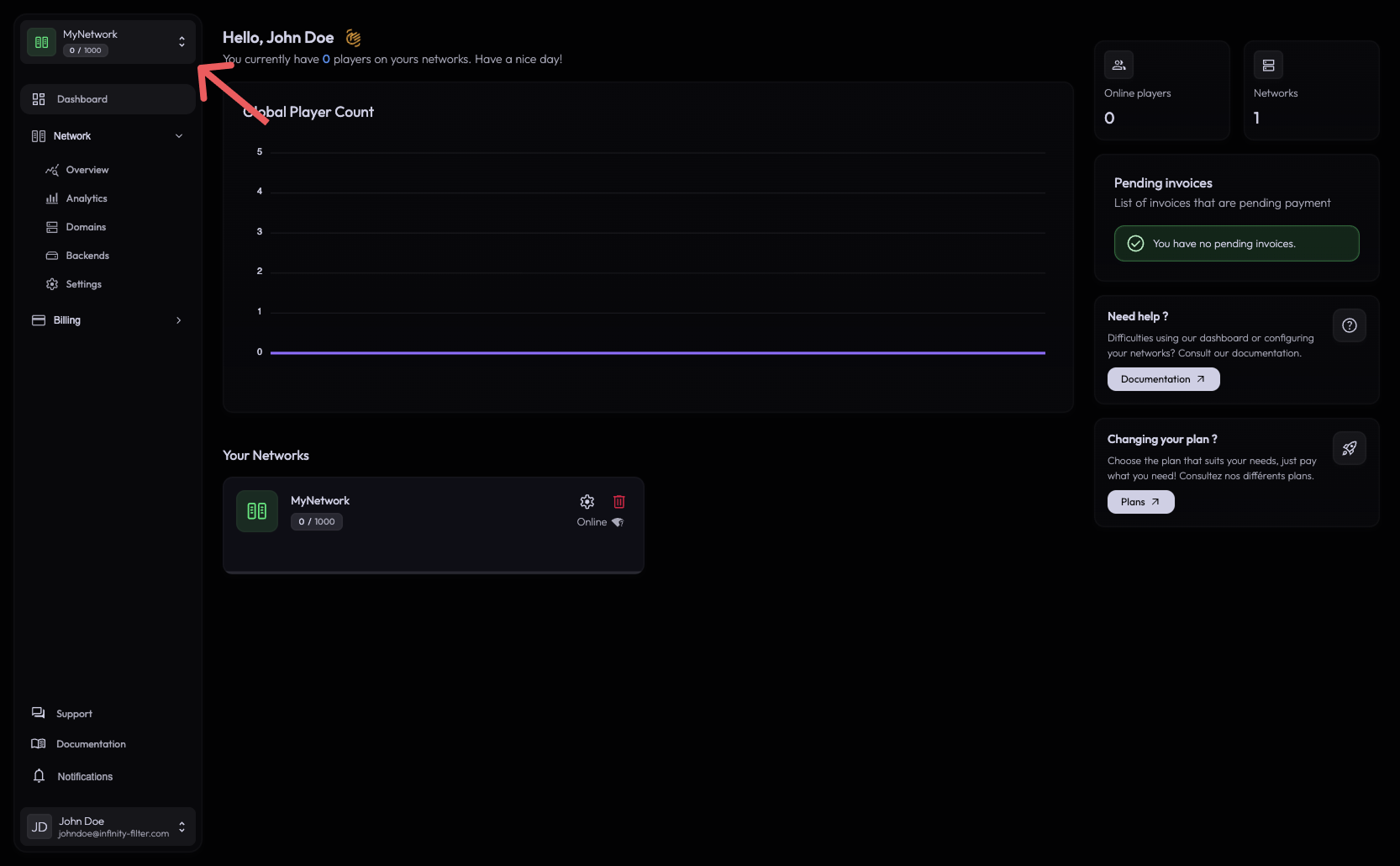
When a network is selected, the Network sidebar entry expands into its sub-pages:
- Overview — status at a glance.
- Analytics — player and traffic metrics.
- Domains — the player-facing hostnames.
- Backends — your real servers, plus modules.
- Settings — everything else, with its own vertical sub-nav.
Creating a network
At the top of the sidebar, click the + button next to the active-network chip.
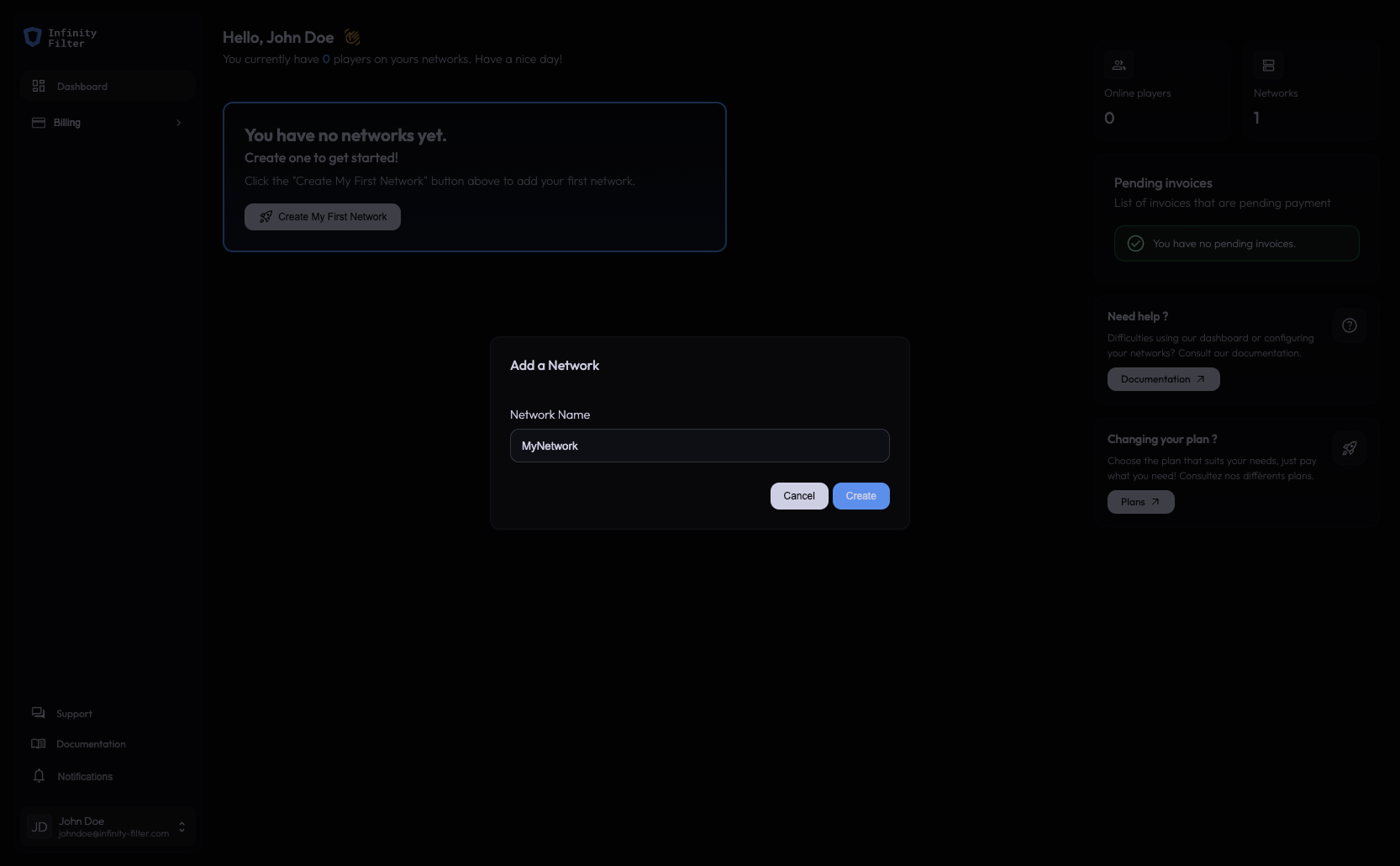
Give it a name (an internal label, visible only to you). After creation the network is provisioned within seconds and you land on its Overview page with two pending setup tasks: Set up your backend(s) and Set up your domain(s).
The Overview page
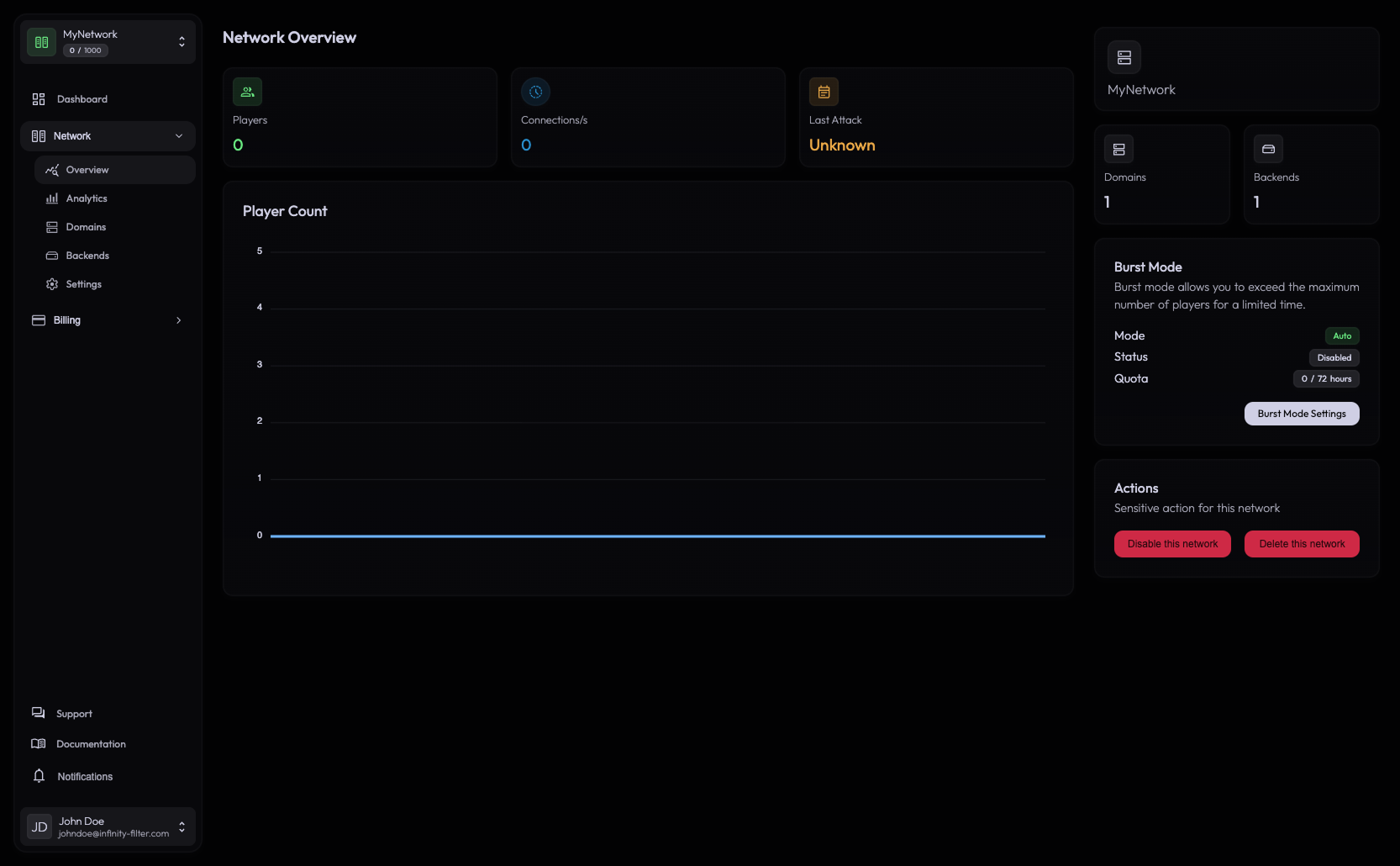
Top of the page:
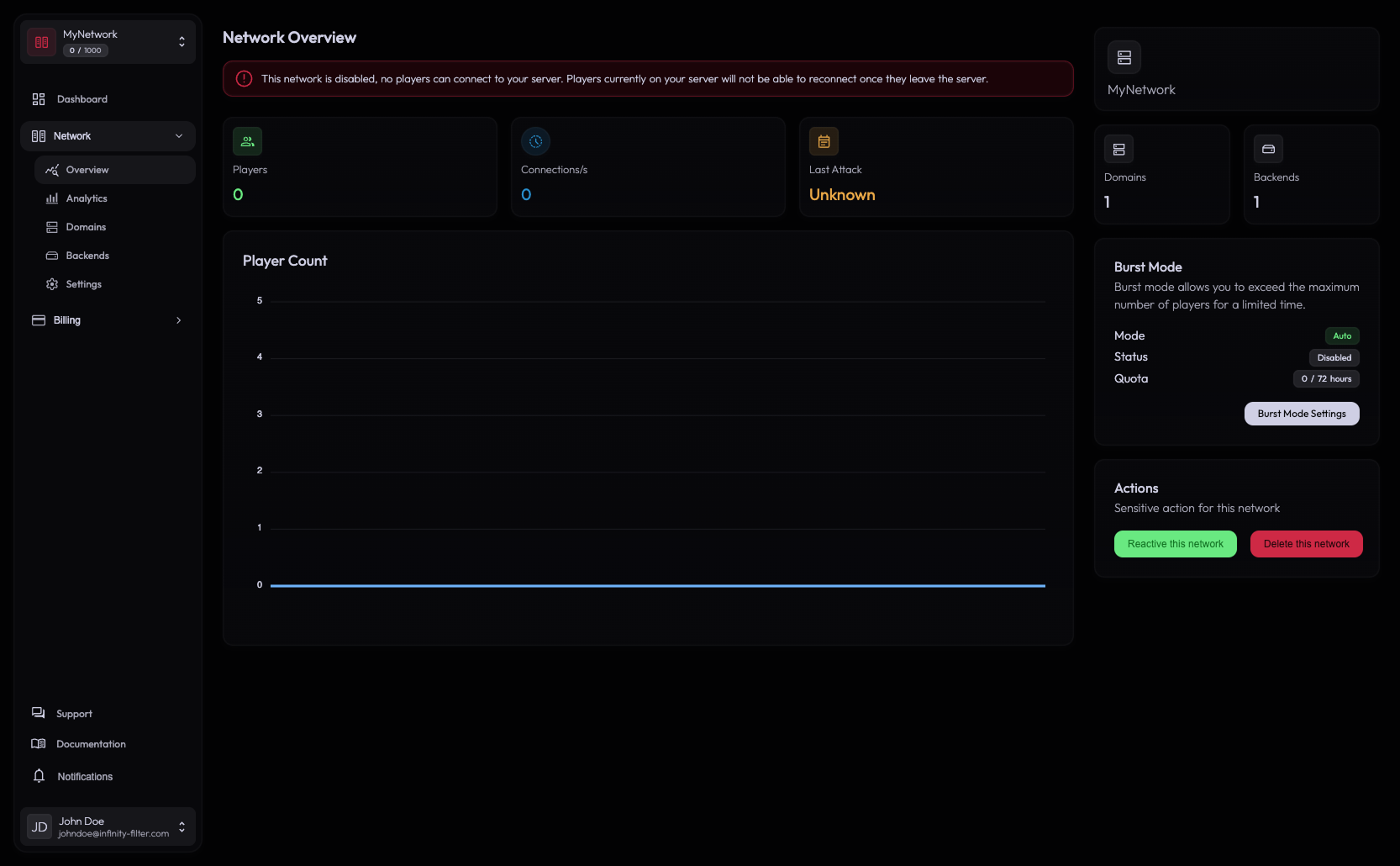
- A red banner This network is disabled if the network is disabled.
- A warning card with setup tasks if the network was just created.
- Three KPI cards: Players (online), CPS (connections/sec), Last attack (date).
Below the KPIs:
- The Player count chart over the last 24h / 7d / 30d.
Right-hand side panel:
- A name card (rename shortcut to Settings → General).
- Domains and Backends counters.
- A Burst Mode info card (shortcut to Settings → Burst Mode).
- An Actions card with two buttons:
- Disable / Reactivate — see below.
- Delete this network — permanent and irreversible.
Disabling a network
A network can be disabled for several reasons:
- Manually — you click Disable on the Overview page’s Actions card.
- Automatically — via the billing system: payment failure, subscription cancellation, plan downgrade that no longer covers this network.
When disabled, traffic is no longer routed through Infinity-Filter for that network. Players hitting the configured domains will see the offline MOTD (if configured) or get a connection error.
To re-enable a disabled network: open the Overview page → Actions card → Reactivate.
Deleting a network
From Overview → Actions → Delete this network. Deletion is permanent:
- The network and its configuration are removed.
- Domains in the panel are unregistered.
- DNS at your registrar continues to resolve through Infinity-Filter until you update or remove the CNAME — players hitting it see the protected fallback message.
Analytics
Each network has its own Analytics page with three tabs — Player, Retention and Connection — covering everything from concurrent players and country distribution to retention cohorts and per-reason connection drops.
It’s a dedicated feature with its own page: see Analytics.
Network → backend relationship
Two rules matter:
One network = one MOTD source Only the first backend in the Backends list is queried for MOTD. All domains in the network share that MOTD.
All domains load-balance across all backends There is no per-domain → per-backend routing inside a single network. To send a specific domain to a specific backend, create a separate network.
If you need a different MOTD per region or a domain that always lands on a specific backend, that’s a multi-network setup. Contact support if you want a custom plan with extra networks.
What’s next
Last updated: May 28, 2026